Lisa Buck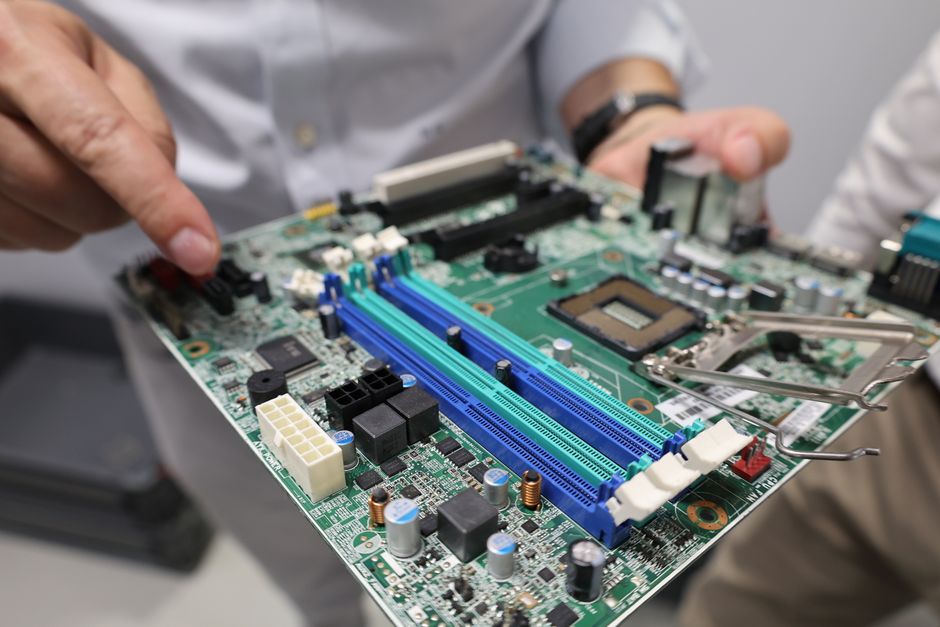
A motherboard manual is most useful while your parts are still on the desk. It translates the labels on the board into a plan: where components belong, which connections they need, and which installation choices affect something else. Reading it before you build does not mean memorizing every page. The goal is to identify the instructions that apply to your parts and keep those pages ready when assembly begins.
Confirm you have the right manual
Match the manual to the complete model name printed on the motherboard or its packaging. Similar names can describe different boards, and a suffix may distinguish a wireless version or a different layout. Check the board revision too, if the manufacturer separates documentation by revision. A diagram that looks almost right is not enough when you are following a connector pinout.
If you use a downloaded copy, get it from the manufacturer’s support page for that exact board. Check whether the download is a complete user manual, a quick installation guide, or a separate firmware guide. You may need more than one document. Keep a local copy on another device so you can read it while the new system is offline.
Read in an order that matches your build
You do not have to start at the first page and continue straight through. Begin with the contents, specifications, and board layout. Then read the installation sections for the parts you actually have. Finish with the startup instructions and the references you might need if assembly does not go as expected.
A useful first pass answers these questions:
- Does anything require checking before I install the CPU?
- Which slots and connectors will my components use?
- Will installing one device change the availability of another connection?
- Which cables will become difficult to reach later?
- Which pages should stay open during assembly and first startup?
Write down page numbers rather than copying entire sections. Your notes should direct you back to the authoritative diagram, especially for small connectors where a transcription mistake could matter.
Use the layout diagram as your reference map
Find the full-board drawing and orient it to match the board on your work surface. Use recognizable features such as the CPU socket and rear ports. Then connect the numbered callouts with their descriptions. Labels such as CPU_FAN are identifiers; their exact meaning comes from the manual’s connector section.
Locate the main power connectors, memory slots, intended graphics slot, storage sockets, and case headers. Also find any onboard buttons and jumpers. This is a mapping exercise, not a reason to move jumpers or press buttons. Some features are intended for recovery or servicing and should remain untouched during normal assembly.
When you reach an individual connector diagram, check its viewing direction. A drawing may show the header from above or show a cable connector from a particular side. Identify the marked first pin and any missing pin before interpreting the rest of the diagram. Never assume the top of the page corresponds to the top edge of the motherboard.
Separate compatibility checks from installation instructions
Identify what needs a supporting document
The manual describes the board’s platform and installation requirements, but a printed document may not contain the latest CPU support details. If processor support depends on firmware, consult the manufacturer’s CPU support list for the exact board and note the required BIOS version. Establish whether the board is ready for your processor before assembly.
Likewise, treat memory compatibility lists and firmware notes as supporting documents where the manual directs you to them. You are gathering the requirements for this build, rather than assuming a broad specification guarantees every possible component combination.
Mark the instructions for your configuration
Find the memory population diagram for the number of modules you have. Use its specified slot labels instead of assuming that the nearest slots are correct. For the CPU and cooler, note instructions concerning socket covers, retention hardware, and the motherboard backplate. Consult the cooler’s own instructions as well; the board manual does not describe every mounting kit.
Flag any installation warning that changes the order of work. Access to a storage socket or cooler mounting point may become restricted after a larger component is fitted. Reading ahead helps you avoid removing an already installed part simply to reach something underneath it.
Look for conditions in notes and footnotes
Specification summaries often list everything a motherboard can offer, while footnotes explain which features can operate together. Pay attention to words such as shared, disabled, depending on CPU, and when populated. These conditions can affect your slot and port choices even when every component physically fits.
Read the relevant storage and expansion notes as one set. If a table describes several configurations, find the row that matches your processor and planned devices. Record the result in practical terms, such as which SATA connection to leave unused or which expansion slot to reserve. Do not generalize a restriction from one socket to every socket on the board.
If a note is ambiguous, follow its cross-reference before proceeding. A layout drawing shows location; a configuration table explains behavior. You often need both to make a reliable plan.
Turn connector pages into a cable checklist
List the cables coming from your case, power supply, cooling equipment, and accessories. Match each one to a documented destination. This exposes missing connections and incompatible accessories before the motherboard is surrounded by other parts.
For each connection, check the connector type, orientation, electrical requirements, and any stated limit. A similar-looking plug is not proof of compatibility. RGB lighting and addressable RGB lighting can use different voltages and pin arrangements. Use the exact header description and the accessory instructions rather than relying on cable color or proximity.
Read the power-connection section carefully enough to distinguish required connections from conditional or supplementary ones. CPU power and graphics-card power cables are not interchangeable. Use the power supply’s documentation to identify the correct cable, and use only modular cables approved for that particular power supply.
Bookmark the case-header diagrams for assembly day. You do not need to memorize their pinouts. You do need to know where the diagrams are and how their orientation matches the board.
Read the first-start instructions before connecting power
Find how to enter firmware setup and what the manual says about initial startup. Some systems perform memory training before showing an image, so understand any documented startup behavior before deciding that the build has failed. Locate the diagnostic reference pages now, without turning your pre-build reading into a full troubleshooting session.
Also locate the procedures for clearing settings and recovering firmware, if provided. These are references to keep available, not routine steps to perform on a new build. Procedures and power-state requirements vary, so avoid substituting instructions remembered from another motherboard.
Finish with a short assembly brief
Reduce your reading to a single practical note: the exact board identity, outstanding compatibility checks, chosen slots, connector destinations, installation-order constraints, and important page numbers. Keep it beside the manual. Before fitting each major part, revisit the relevant diagram and warning. That small habit turns the manual from something you search after a mistake into a useful part of the build itself.


 Lisa Buck