Lisa Buck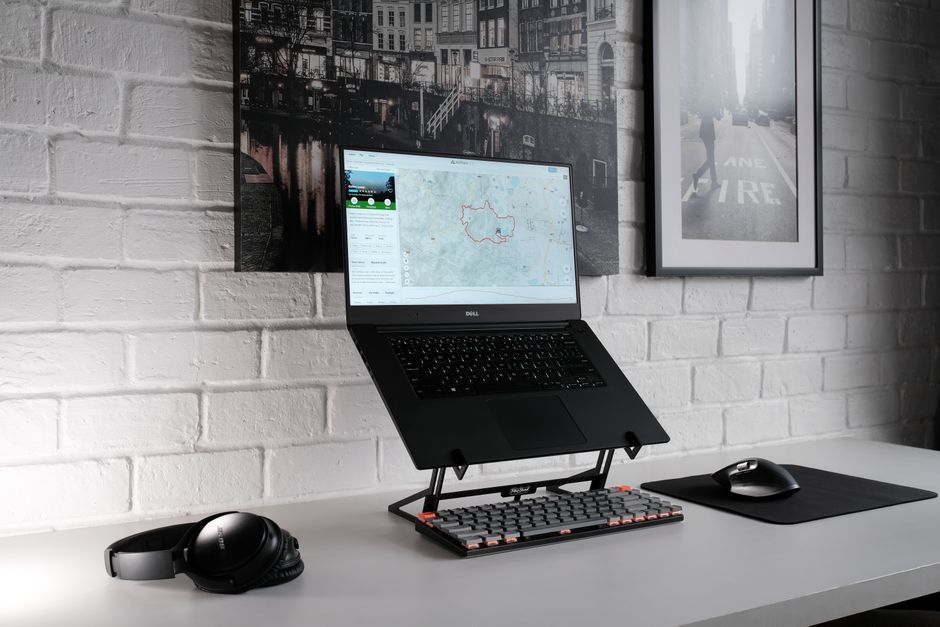
A laptop is convenient because its screen, keyboard, and pointing device travel together. During long work sessions, that design creates a compromise: placing the keyboard comfortably often leaves the screen too low, while raising the screen puts the keys too high. A laptop stand helps separate those needs, provided you arrange the rest of the workspace around it. The aim is a setup that supports relaxed working positions and lets you change position easily.
What a laptop stand can improve
A stand raises the display so you can read without continually bending your head toward the desk. It also lets you place the laptop farther back while keeping a separate keyboard and mouse close. That separation is the main ergonomic benefit. A stand alone cannot compensate for a desk that is too high, a chair that leaves your feet unsupported, or text that is too small to read comfortably.
For extended typing, plan to use an external keyboard and pointing device with an elevated laptop. Typing on a laptop perched high above the desk can make you lift your shoulders, reach forward, or bend your wrists. A shallow typing riser offers a different compromise: it changes the keyboard angle but may not raise the display enough for comfortable viewing.
Choose a stand that fits your workspace
Height and angle adjustment
Look for enough height adjustment to position the screen comfortably from your normal seated posture. Angle adjustment helps you aim the display toward your eyes, but tilt alone is not a substitute for height. Check the usable range with your laptop open, since its screen size, hinge position, and maximum opening angle affect where the display ends up.
A fixed stand can work well at a dedicated desk once you know the height you need. An adjustable stand is more adaptable when you change chairs, share a workstation, or move between locations. For travel, consider how quickly it unfolds and whether it fits alongside your keyboard and mouse. A portable setup only helps if you can realistically use all its parts.
Stability and laptop support
Check the stand’s stated load capacity and supported laptop dimensions. Weight capacity alone does not guarantee a good fit: a large chassis can overhang a small platform or shift its balance when the display opens. The base should sit flat, adjustment joints should hold their position, and contact pads should grip without pressing against fragile edges.
Retaining lips should keep the laptop from sliding without obstructing ports. Check for wobble when you adjust the screen or connect a cable. A high stand with a narrow base may be inconvenient on a shallow desk, particularly if cables pull sideways. Make adjustments with the laptop supported according to the stand’s instructions, and check for pinch points before folding it.
Vent clearance and desk footprint
Choose support points that leave the laptop’s intake and exhaust openings clear. An open frame can provide useful clearance, but its shape still needs to match the underside of your machine. A stand does not guarantee better cooling, and a built-in fan does not establish whether its height or stability suits you. Leave room for the keyboard, mouse, and your forearms.
Set up from the chair outward
Start with your body and input devices before choosing the final display height. If you position the screen first, you may end up adjusting your posture to suit the equipment. Use this sequence as a starting point, then refine it while doing your normal work.
- Settle into the chair. Sit with your back supported and your feet resting on the floor or a stable footrest. Leave enough space behind your knees to avoid pressure from the seat edge.
- Position the keyboard. Keep it close enough that your upper arms can stay near your sides and your shoulders feel relaxed. Reach the keys without lifting your shoulders.
- Place the mouse beside it. Keep the pointing device on the same working level and within easy reach. Avoid putting it beyond a large gap or behind the keyboard.
- Raise the laptop screen. Start with the top of the visible display around eye level or slightly below, then adjust until you can look comfortably at your work without lifting your chin.
- Refine distance and readability. Begin around an arm’s length away, treating that as a starting point rather than a fixed rule. Adjust distance and text size together.
If your desk is too high, raising the chair may help your arms reach the keyboard comfortably, but your feet may then need a footrest. Keep leg space clear so you can move. Avoid resting your wrists or forearms against a sharp desk edge, and keep your wrists reasonably aligned with your forearms rather than bending them upward to reach the keys.
Make the screen comfortable to read
A raised display is only useful if you can read it from your supported position. Increase operating-system scaling or application zoom when you find yourself leaning forward to inspect text. Moving a small screen farther away without enlarging its contents can undermine the benefit of the stand. Check the applications you use most, including menus and side panels.
Arrange the screen to reduce reflections from windows and overhead lighting. Positioning the desk sideways to a window often gives you more control than facing directly toward or away from it. Adjust brightness to suit the room, and change the display angle if reflections obscure your work. Recheck this as daylight changes.
The usual screen-height starting point may need changing if you wear progressive or bifocal lenses. If reading requires you to tip your head backward, try lowering the display and adjusting its distance. Let comfortable viewing guide the arrangement instead of treating eye-level placement as an absolute requirement.
Adapt the arrangement to your working day
Using another display
If you also use an external monitor, put your main working display directly ahead. Position a secondary laptop screen nearby so you can glance across without repeatedly twisting your body. When both screens receive similar use, keep them close together and arrange your chair so neither requires a large turn. The laptop stand should support that viewing pattern.
Working away from your desk
On a shared table, a folding stand and compact external inputs can recreate the essentials of your home setup. Check the surface before unfolding the stand, and keep cables clear of walkways. A sofa or bed makes stable placement and supported typing harder; for sustained work, seek a table and chair that let you arrange the equipment properly.
Changing between sitting and standing
A laptop stand on an ordinary desk does not necessarily create a usable standing workstation. Your keyboard and mouse also need to reach a comfortable height. With a height-adjustable desk, set the input surface for relaxed shoulders first, then adjust the display. Alternate positions according to comfort and task demands; standing still is also a static posture.
Check comfort during real work
Try the arrangement while writing, navigating documents, and joining a call. Notice whether you creep toward the screen, reach for the mouse, or shrug your shoulders. Change one thing at a time so you can tell which adjustment helps. Leave a little cable slack so you can reposition the laptop without pulling on its connectors.
No stand removes the need to move. Take brief opportunities to stand, walk, look away from the display, and change tasks. The most useful setup makes those transitions easy while keeping the screen readable and the controls within relaxed reach. Choose the stand as one part of that arrangement, then keep adjusting it to how you actually work.


 Lisa Buck