Lisa Buck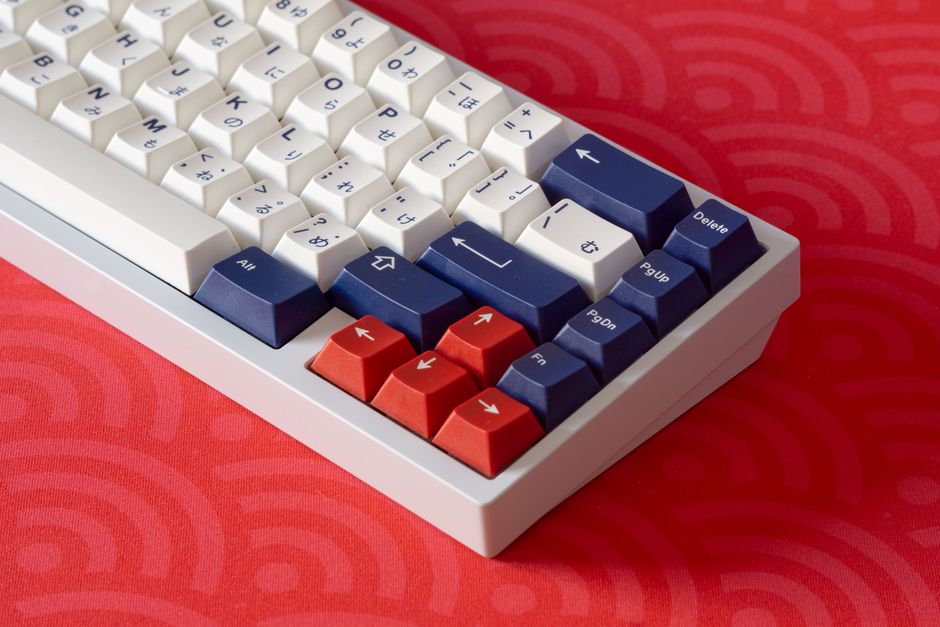
Choosing a keyboard and mouse for a desktop PC starts with the tasks you repeat every day. A comfortable pair can make typing, navigating documents and playing games feel more natural. The most useful features depend on your hands, available desk space and preferred way of working. Start with fit and layout, then compare connections and controls. A long list of specifications cannot tell you whether an essential key is awkward to reach.
Match the pair to your workspace
Look at how you use your current equipment. Frequent number entry makes a number pad valuable, while games may require generous room for mouse movement. Editing documents puts more emphasis on navigation keys and scrolling. Identify the things that slow you down before deciding which extras deserve attention.
Measure the space available for both devices, including the area needed to move the mouse. A wide keyboard can push your mouse hand farther away from your body. A smaller board may let you keep both hands closer to a relaxed position. Leave enough room that the mouse does not repeatedly hit the keyboard or the edge of the desk.
Choose the right keyboard layout
A full-size keyboard provides a number pad, navigation cluster and function row. A tenkeyless board removes the number pad while retaining most familiar controls. More compact layouts save additional space by moving some functions behind key combinations. Their smaller footprint is useful only if those combinations suit your habits.
Check how you access arrow keys, Delete, Home, End and function keys. If you use these constantly, dedicated keys may be worth the extra width. An external number pad is another option when you enter figures occasionally but want a narrower main keyboard.
- Regional layout: Confirm the positions and shapes of Enter, Shift and punctuation keys. Similar-looking keyboards can have different arrangements.
- Readable legends: Check contrast and lettering in normal room lighting. Backlighting does not automatically make every marking clear.
- System compatibility: Modifier labels and shortcut functions should suit your operating system or support appropriate remapping.
- Shared use: Consider whether other people will be comfortable with a compact or unfamiliar layout.
Compare key feel and noise
Understand the mechanism
Many membrane keyboards use rubber domes to provide resistance and return the keys. Scissor mechanisms guide low-profile keys and often have relatively short travel. Mechanical keyboards use individual switch mechanisms. All of these designs can vary in comfort, construction and sound, so the category alone does not establish quality.
Mechanical switches are often described as linear, tactile or clicky. Linear switches move without a deliberate tactile bump. Tactile switches provide a noticeable change in resistance, while clicky switches add an intentional click. Color names are not consistent specifications across manufacturers; compare the actual switch descriptions.
Try more than the letter keys
Lighter keys may feel easier to press but can register unintended touches. Firmer keys offer more resistance, which some users find tiring. Shorter travel is not automatically more comfortable. If possible, type a paragraph and try Space, Enter and Backspace as well as individual letters. Large keys can feel and sound different because of their stabilizing mechanisms.
For a shared room, consider the sound of the complete keyboard. The switches, case, keycaps and your typing technique all contribute. A mechanical keyboard without clicky switches can still be loud. Quiet mouse buttons may matter just as much if someone works nearby.
Fit the mouse to your hand
Mouse shape matters more than an impressive sensor specification. A palm grip rests much of your hand on the shell. A claw grip arches your fingers, while a fingertip grip uses less palm contact. These descriptions help compare shapes, but you do not need to force yourself into one grip style.
Look for a mouse that lets you reach the wheel and main buttons without stretching or squeezing. Check width and the position of the raised part of the shell, not just length. Side buttons should sit within easy reach without causing accidental presses. Left-handed users should check button placement as well as whether the shell is symmetrical.
A lighter mouse usually takes less effort to reposition, while some people prefer a heavier feel. Neither guarantees accuracy. Check that the feet glide smoothly and that a cable does not pull against your movement. A mouse mat provides a consistent surface; glass or reflective desks may cause tracking problems unless the sensor supports them.
Choose controls that help your work
Mouse sensitivity is commonly expressed as DPI or CPI. Higher settings move the pointer farther for a given physical movement; they do not automatically improve precision. Adjustable sensitivity helps you balance broad movements across the screen with selecting small targets. An extremely high maximum setting is rarely a practical reason to choose one mouse over another.
Polling rate describes how often a device reports to the computer. Higher rates can shorten the reporting interval, but the highest setting is unnecessary for ordinary desktop work and can increase power use or processing demands. For gaming, consider reliable tracking and consistent input alongside these specifications. Keyboard rollover support matters when several keys must register together.
Try the scroll wheel on both short selections and long documents. Distinct steps help with deliberate movements, while a free-spinning mode can make long pages easier to navigate. Extra buttons are useful when you have a clear purpose for them, such as document navigation or application shortcuts.
Check wired and wireless connections
Wired USB devices avoid battery management and suit a stationary desktop. Check cable length and the ports available on your PC. USB-C describes a connector shape; it does not by itself guarantee better responsiveness. Also confirm whether a detachable cable uses a standard connection you can replace easily.
Wireless models may use Bluetooth, a dedicated USB receiver or both. Bluetooth requires compatible support in your desktop. A receiver occupies a USB port and can be convenient when the PC lacks Bluetooth. Two devices cannot necessarily share one receiver, even if they come from the same manufacturer.
Check whether a wireless keyboard works before the operating system loads if you need access to firmware menus. Bluetooth input may be unavailable there. A charging cable may only supply power rather than carry input, so verify wired operation separately. Consider battery replacement, charging access and a receiver position that provides a reliable signal.
Make the final choice through everyday use
Keep both devices close enough that your shoulders relax and your wrists remain reasonably straight. Raising the keyboard’s rear feet may bend your wrists upward rather than improve comfort. Split keyboards, vertical mice and trackballs offer alternative positions, but need an adjustment period and are best assessed through actual use.
Check software requirements before buying. Basic typing and pointing usually work without optional applications, while remapping, profiles and lighting controls may require software unavailable for your operating system. Onboard profile storage can help when moving between computers. A bundle makes sense only when both included devices fit your needs.
Use the return window to type, enter numbers, scroll and select small targets in your usual applications. Adjust sensitivity and placement before judging the result. Notice unwanted presses, awkward reaches and distracting noise. Keep the keyboard and mouse that make ordinary tasks comfortable and predictable, with extras you will actually use.


 Lisa Buck