Lisa Buck
Motherboard storage options affect more than how many drives you can attach. SATA ports provide connections, RAID can organize multiple drives into an array, and hot-swap support can allow a drive replacement while the system remains powered on. These are separate capabilities. A board with spare connectors does not necessarily support RAID, and a removable drive tray does not automatically support safe live replacement.
To understand Motherboard Storage Options: SATA Ports, RAID and Hot Swap, start with the motherboard manual and your intended drive arrangement. The useful question is whether the complete system supports the way you want to connect, manage, and maintain those drives.
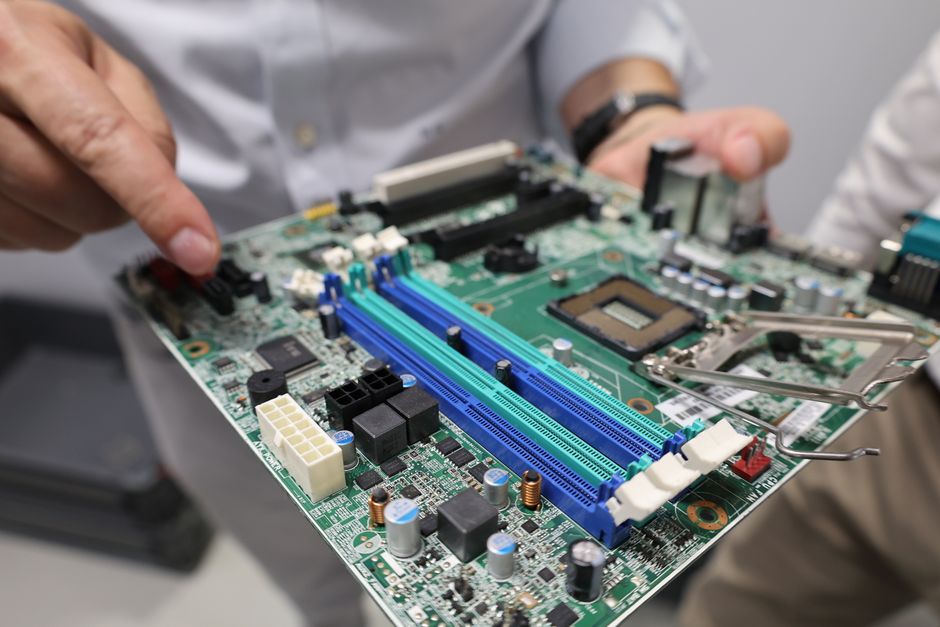
Count usable SATA connections
A conventional SATA hard drive or SATA SSD needs a data cable to the motherboard and a separate power connection from the power supply. Each motherboard SATA connector normally serves one drive. Count the connectors, then check the manual for restrictions that apply when other components are installed.
Some motherboards disable particular SATA ports when certain M.2 sockets are occupied. Others allow all those connections to work together. Read the configuration notes for your exact board and installed devices. A physically empty connector can still be unavailable because of resource sharing.
- Identify port labels: Match the labels printed beside the connectors to the manual.
- Check controller ownership: Additional SATA ports may use a separate controller with different driver requirements and array support.
- Inspect access: A graphics card or case panel can obstruct a connector or leave little room for its cable.
- Count mounting and power connections: Spare data ports do not provide drive power or a secure mounting position.
Use only modular power cables approved for your exact power supply. A plug fitting into the power supply does not prove electrical compatibility. Route SATA data cables without sharp bends or sideways pressure on their connectors, and leave enough clearance for any locking latch.
Choose the controller mode deliberately
AHCI is a common mode for SATA controllers serving independently managed drives. It provides a standard interface between a compatible controller and the operating system. RAID mode enables the platform’s supported array functions and generally requires suitable drivers and management software.
RAID mode does not necessarily require every attached drive to belong to an array. Some implementations support individual drives alongside RAID volumes. Check the board’s documentation before planning that arrangement, especially if different groups of ports belong to different controllers.
Changing an existing system from AHCI to RAID mode, or back again, can prevent the operating system from booting. Its storage driver and configuration must match the selected mode. Record the current setting, verify your backup, and follow the documented transition procedure. For a fresh installation, decide on the mode beforehand and prepare any storage drivers the installer requires.
Match RAID to a specific need
RAID organizes multiple drives into a logical storage arrangement. Depending on the layout, it can provide redundancy, distribute work across drives, or combine those goals. Motherboard RAID commonly uses platform firmware together with operating system drivers. Its migration and recovery requirements differ from those of a dedicated hardware RAID controller.
Understand the common layouts
- RAID 0: Stripes data across drives without redundancy. A member failure can make the entire volume unusable. Use it only when the workload benefits and the data can be restored or recreated.
- RAID 1: Mirrors data. A typical two-drive mirror can remain available after one member fails, but its members contain the same logical data rather than independent historical copies.
- RAID 5: Distributes data and parity across at least three drives. It can tolerate one member failure, while rebuilding creates additional work for the remaining drives.
- RAID 10: Stripes across mirrored pairs and normally needs at least four drives. Failure tolerance depends on which drives fail; losing both members of one mirrored pair can lose the array.
Not every motherboard supports each layout. SATA RAID support also does not establish support for NVMe RAID or for combining SATA and NVMe drives in one firmware-managed array. Confirm the supported drive types, operating systems, and layouts before buying drives for a planned configuration.
Plan capacity using the rules for your selected layout. Conventional arrays often limit each member’s contribution to the smallest member’s capacity, leaving some space unused when capacities differ. Similar drive characteristics make planning simpler. Do not assume an array will make ordinary applications feel faster; the result depends on the workload and implementation.
Separate redundancy from backup
A redundant array can help maintain access after a drive failure. It cannot provide an earlier version after you delete a file, overwrite something important, or suffer damaging software activity. Keep independent backups with recoverable versions and verify that important files can be restored.
Before creating an array, copy needed files elsewhere and confirm the intended members by serial number. Treat creation as potentially destructive. Record the layout, controller mode, drive identities, and recovery procedure. If the motherboard fails, importing its array elsewhere may require compatible hardware and software. Do not assume another board will recognize it automatically.
Verify the complete hot-swap path
Hot swapping means replacing a drive while the system stays powered on. Safe operation requires support from the controller, firmware configuration, operating system, drivers, and physical connection. SATA connectors alone do not establish that the complete installation supports the operation.
Use a bay or backplane explicitly designed and documented for hot swapping when you need routine live replacement. Some removable trays are intended only to simplify powered-off maintenance. Check the enclosure’s drive compatibility, power arrangement, and removal instructions before relying on it.
Motherboard firmware may offer hot-plug settings for individual SATA ports. Configure the intended ports according to the manual and verify that the operating system and controller software support the resulting arrangement. Standalone drives and RAID members may require different removal procedures. When support is uncertain, shut the computer down before disconnecting a drive.
Replace drives in a controlled sequence
- Identify the exact device: Match its serial number and physical bay to the controller’s status display. A drive letter is insufficient for identifying an array member.
- Check health and backups: Confirm the array state before removing anything. Multiple failing members require careful recovery planning.
- Prepare removal: Close applications using a standalone data drive and follow the supported eject or offline procedure. For an array member, use the controller’s replacement instructions.
- Verify the replacement: Install a compatible drive, confirm detection, and initiate or monitor rebuilding as documented. Insertion does not always start recovery automatically.
Do not remove a boot drive or an active standalone volume while powered on without explicit support for that operation. During a rebuild, avoid unnecessary maintenance and additional drive changes. Confirm that the array returns to a healthy state, then investigate any continuing errors rather than assuming replacement solved everything.
Make maintenance part of the plan
Independent SATA drives with dependable backups are straightforward for many desktops. Choose RAID when availability or a defined workload justifies its added management requirements. Choose hot-swap hardware when live replacement serves a practical purpose. Labeling connections and keeping configuration records now makes a future failed drive much easier to identify and replace.


 Lisa Buck