 Lisa Buck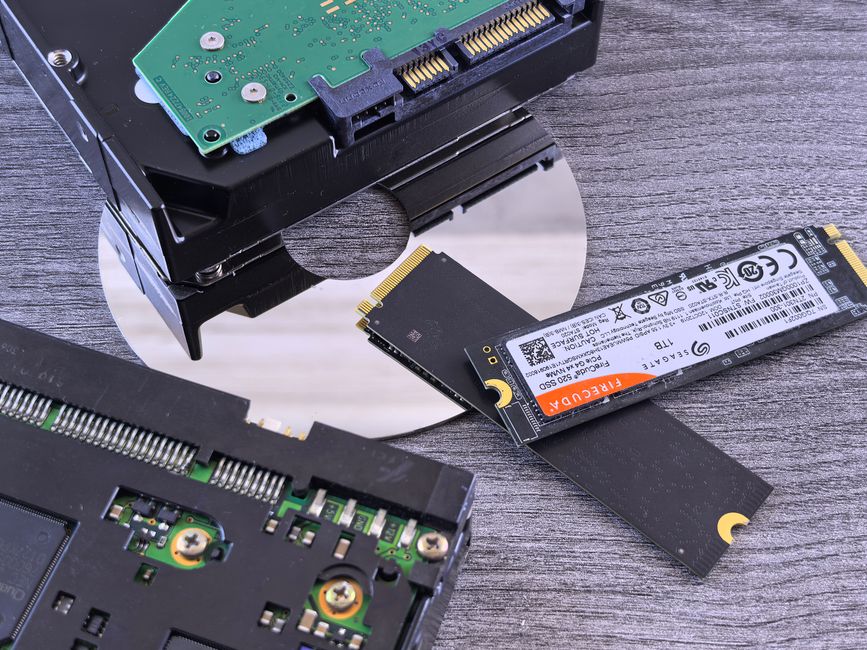
Hard drives still have a useful place in a PC, even when an SSD handles everyday work. Their strongest role is holding large collections of data that do not need an instant response every time you open them. The practical question is whether your files benefit more from inexpensive capacity or fast access. Once you separate those needs, an HDD can become a sensible part of your storage plan instead of a frustrating place to run everything.
What makes a hard drive useful
An HDD stores data magnetically on spinning platters. A moving head assembly accesses different areas of those platters. That mechanical process explains both its strengths and its limitations: hard drives can offer substantial capacity at a relatively low cost per unit of storage, but accessing scattered files requires physical movement.
An SSD has no moving read heads, so it responds much more quickly to small, scattered requests. That matters when your operating system starts, applications load their supporting files, or several programs access storage at once. A hard drive is better suited to work where waiting briefly is acceptable and capacity matters more than responsiveness.
Think of an HDD as a capacity drive. It can complement your main SSD without needing to match its speed. If you only store a modest collection of files, however, adding a second type of drive may introduce complexity without solving a real problem.
Files that fit well on an HDD
Media collections and completed projects
Movies, music, exported videos, scanned documents, and completed project folders are natural candidates. Reading one large file in sequence generally suits a hard drive better than jumping between many small files. Ordinary media playback can work well, provided the drive and connection can sustain the file’s data rate and are not overwhelmed by other activity.
For creative work, distinguish between storing material and actively editing it. An HDD can hold original footage or finished exports, while your SSD holds the current project, previews, and working files. High bitrate footage, multiple simultaneous video streams, and demanding editing workflows may need faster storage even though they involve large files.
Backup copies and local archives
A hard drive is useful for keeping backup versions of documents, photos, and other important data. An external HDD can also be disconnected between backup sessions, reducing its exposure to problems affecting the connected computer. Use backup software with version history where possible, so an accidental edit does not immediately replace your only good copy.
An archive serves a different purpose: it holds material you rarely use. If you move a folder from your PC to an archive drive and delete the original, you still have only one copy. Irreplaceable archive data needs another independent copy, just like files you use daily.
Occasionally used game libraries
An HDD can hold downloaded game files that you want to keep without occupying your main SSD. Where a launcher supports moving installations, you can transfer a game back to faster storage before playing. Check each game’s storage requirements: some expect an SSD, and others may show longer loading times or interruptions while retrieving assets from a hard drive.
Workloads that deserve an SSD
Keep your operating system and frequently used applications on an SSD when possible. The same applies to active virtual machines, busy databases, software build folders, and other workloads that repeatedly access small files. More HDD capacity does not compensate for slow access when the task depends on responsiveness.
Also consider how much you move the computer. Mechanical drives are vulnerable to shock, especially while operating. An HDD is less appealing for a laptop that travels frequently or a portable drive used while walking around. Noise and vibration matter too: spinning platters and head movement can be noticeable in a quiet room.
Choose a drive for its actual workload
Check recording technology
Look for the manufacturer’s recording technology specification for the exact drive and capacity. Conventional magnetic recording, or CMR, is generally the more predictable choice for frequent writes, large repeated updates, and storage arrays. Shingled magnetic recording, or SMR, overlaps recording tracks to increase density, which can make rewriting existing data more involved.
An SMR drive can be adequate for occasional backups or an archive that is mostly read after being written. Sustained writes and repeated changes may slow substantially once its buffering and background management cannot keep up. For a NAS or array, follow the enclosure vendor’s compatibility guidance rather than assuming every SATA HDD behaves the same way.
Look beyond headline specifications
Rotational speed affects performance, but it does not describe the whole experience. Recording design, workload, drive capacity, and firmware behavior also matter. A larger cache does not turn a mechanical drive into an SSD. Prioritize suitable recording technology, supported usage, warranty terms, and compatibility over a single attractive number.
Choose capacity around your existing files and realistic growth. Leave working room for new data and backup versions rather than planning to fill the drive immediately. Check how your backup software handles retention, because keeping several versions can require much more space than simply copying your current folders.
Decide between internal and external storage
An internal HDD suits a desktop that needs always-available bulk storage. Before buying, confirm that the case has a suitable drive bay, the motherboard has an available compatible connection, and the power supply has the required connector. Desktop hard drives commonly use a larger form factor than laptop drives, so physical fit deserves a check.
An external HDD is convenient for backups or sharing files between computers. Check its power requirements: many desktop external units need their own power adapter. The enclosure must support the drive’s size and capacity. A USB-C connector alone does not tell you the connection speed, and a faster interface cannot remove the drive’s mechanical limits.
For either arrangement, provide ventilation and place the drive on a stable surface. Secure an internal drive using the case’s intended mounting system. Avoid moving an external HDD while it is active, and eject it through the operating system before disconnecting it.
Put your storage plan into practice
- Sort by access needs. Keep daily applications and active work on the SSD; assign media, completed projects, and backup data to the HDD.
- Give the drive a clear role. Use descriptive volume and folder names so you can distinguish working files, archives, and backups.
- Verify transfers before deleting originals. Open representative files and use verification features or checksums for important collections.
- Schedule heavy activity sensibly. Large backups can compete with media playback or file browsing on the same drive.
- Check your backups. Periodically restore a few files to confirm that the process produces usable copies.
Keep expectations realistic about reliability
Drive health monitoring can reveal warnings, but a healthy status cannot guarantee that a drive will keep working. If you notice new repeated clicking, read errors, or frequent disconnections, prioritize copying important data elsewhere. Avoid treating repeated scans or formatting as a substitute for protecting the files first.
Neither a single HDD nor a mirrored pair is a complete backup strategy. Keep independent copies of valuable data, including one away from the computer. With that protection in place, an HDD can do what it does well: provide room for a growing collection while your SSD keeps everyday work responsive.


 Lisa Buck



