 Lisa Buck
Replacing an old drive does not have to mean reinstalling Windows or losing your files. The safest method is to check compatibility, back up important data, clone the old drive, install the new SSD, and verify that the computer boots from it before you erase anything. For most modern desktop PCs and laptops, a 2TB PCIe 4.0 NVMe drive is the best balance of speed, capacity, and price.
Which SSD should you buy for your computer?
Choose the right interface before buying the drive. A fast SSD is useless if your laptop has only a 2.5-inch SATA bay or your motherboard lacks the required M.2 slot. Check the computer manual, motherboard layout, or the model number printed on the existing drive. PCIe NVMe drives use an M.2 slot, while SATA drives use either a 2.5-inch bay and cable or an M.2 SATA slot. These interfaces are not interchangeable in every system.
NVMe and SATA choices compared
| SSD | Format and interface | Rated sequential speed | Best use |
|---|---|---|---|
| Samsung 990 Pro 2TB | M.2 2280, PCIe 4.0 NVMe | Up to 7,450 MB/s read and 6,900 MB/s write | High-end desktops, workstations, and large game libraries |
| WD Black SN850X 2TB | M.2 2280, PCIe 4.0 NVMe | Up to 7,300 MB/s read and 6,600 MB/s write | Gaming PCs and heavy file transfers |
| Crucial T500 2TB | M.2 2280, PCIe 4.0 NVMe | Up to 7,400 MB/s read and 7,000 MB/s write | Fast general-purpose desktop upgrades |
| Samsung 870 EVO 2TB | 2.5-inch SATA | Up to 560 MB/s read and 530 MB/s write | Older laptops and desktops with SATA bays |
| Crucial MX500 2TB | 2.5-inch SATA | Up to 560 MB/s read and 510 MB/s write | Affordable replacements for aging hard drives |
Capacity and physical fit matter more than peak speed
Pick a replacement drive at least 20 percent larger than the used space on the old drive. A 1TB source drive with 780GB occupied needs more than a 1TB replacement because cloning also needs room for partitions and recovery data. A 2TB drive gives a comfortable margin and avoids another upgrade soon.
For a PCIe 4.0 drive, check whether the motherboard includes an M.2 heatsink. Sustained transfers can make an uncooled drive throttle. A PCIe 4.0 SSD also works in many PCIe 3.0 slots, but it will run at the older slot’s lower speed. The clear winner for a modern desktop is the WD Black SN850X or Samsung 990 Pro. For an older SATA-only computer, the Samsung 870 EVO is the better fit because compatibility matters more than benchmark speed.
Back up your files before you touch the old drive
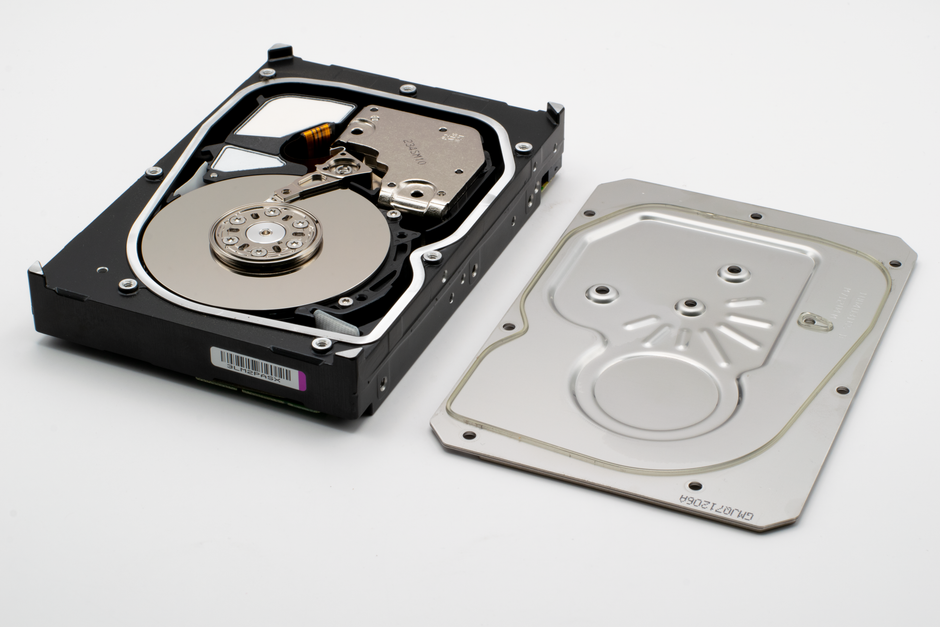
Make two backups before cloning. A clone is a copy of a drive, not a substitute for a separate backup. If the source drive fails during the process, both the original and the clone can become unusable.
Use this safe order of operations
- Copy documents, photos, project folders, browser bookmarks, password exports, and game saves to an external drive or trusted cloud location.
- Open the backup and test several files. A backup that has never been opened is only an assumption.
- Record your Windows sign-in details, encryption recovery key, and software licenses before changing hardware.
- Disconnect unnecessary USB storage devices during cloning. This reduces the chance of selecting the wrong destination.
- Keep the old drive untouched until the new drive has booted correctly for several days.
Check encryption and partition layout first
Device encryption or BitLocker can complicate cloning. Save the recovery key, then follow the cloning software’s instructions for encrypted volumes. In Disk Management, check whether the source uses GPT or the older MBR partition style. Modern systems using UEFI normally need GPT. The source and destination should also have the same Windows system, recovery, and boot partitions copied across.
Do not format the old drive before testing the new one. Do not store the only copy of important files inside a folder that the cloning program will overwrite. These two mistakes cause most avoidable data-loss incidents during an SSD migration.
How to clone Windows to the new SSD
Clone only after verifying the source and destination drives. The process is simple, but the destination choice is permanent once the copy begins. Read every drive name and capacity shown by the cloning program.
Prepare the computer
Shut down the computer and install the new SSD in an open M.2 slot, or connect a 2.5-inch SATA SSD with a data cable and power cable. A laptop may need a USB-to-SATA adapter for the new drive, while a desktop can often connect both drives internally. Use a grounded metal surface, remove the battery when the manufacturer allows it, and never force an M.2 drive into the slot at an angle that does not match the connector.
Start the clone
- Boot into Windows with both drives connected.
- Open a reputable disk-cloning utility and select the old system drive as the source.
- Select the new SSD as the destination. Confirm the destination capacity and model twice.
- Copy every required partition, including EFI, Microsoft Reserved, Windows, and recovery partitions.
- Expand the Windows partition into unused space if the new drive is larger. Leave the recovery partition intact.
- Start the clone and keep the computer connected to AC power. Do not use sleep mode or force a restart while it runs.
Test the cloned drive before removing anything
When cloning finishes, shut down fully. On a desktop, temporarily disconnect the old drive. On a laptop, remove the old drive only after confirming the new one is seated correctly. Start the computer and enter UEFI firmware with the displayed key, often F2, Delete, or F12. Set the new SSD’s Windows Boot Manager as the first boot option.
Once Windows loads, open File Explorer and check your desktop, documents, applications, and available capacity. Open several large files. Restart twice. If the machine works with the old drive disconnected, the migration has passed its most important test.
Why does the new SSD not boot after cloning?

Repair the boot path before repeating the clone. A failed first boot usually means the firmware is starting from the wrong drive, the boot mode does not match the cloned partition style, or the EFI boot files were not copied correctly. It does not automatically mean your files are gone.
What should you check first?
Enter UEFI and select the new drive’s Windows Boot Manager, not only the raw SSD model. If the old drive is still connected, the firmware may keep choosing its boot files. Disconnecting the old drive gives the new installation a clean test.
What if Windows shows a blue recovery screen?
Check that the system uses UEFI for a GPT installation. Avoid switching randomly between UEFI and Legacy or Compatibility Support Module modes, because the wrong setting can make a healthy Windows partition appear unbootable. Use Windows recovery tools to run startup repair, rebuild the boot files, or restore the saved clone if the repair fails.
What if the drive is missing from firmware?
Power off and reseat the M.2 drive. Confirm that the slot supports NVMe rather than SATA-only M.2 devices. Some motherboards disable specific SATA ports when an M.2 slot is populated, so move the SATA cable if the manual lists a shared lane. On a laptop, check the maximum supported drive thickness and single-sided or double-sided module requirements.
For a clean diagnosis, change one thing at a time. Do not format the source drive while troubleshooting. The old installation is your recovery path until the new drive boots, opens files, survives several restarts, and shows normal storage capacity.
Should you clone the drive or reinstall Windows?
Clone the drive when the current Windows setup is healthy; reinstall when it is not. Cloning preserves applications, settings, and activation with less work. A clean installation removes years of driver leftovers, broken software, and unwanted files. Choose the method based on the condition of the old system, not only the speed of the new SSD.
When cloning is the better choice
Use cloning for a working computer with no serious crashes, malware warnings, or file-system errors. It is the fastest route for a laptop full of configured software. The Samsung 990 Pro, WD Black SN850X, and Crucial T500 are strong choices for a desktop with a compatible PCIe 4.0 slot. The Samsung 870 EVO remains the practical choice for an older SATA machine because it matches the available connection.
When a clean installation wins
Reinstall Windows if the old drive has repeated blue screens, damaged system files, suspected malware, or years of software you no longer trust. Back up personal files, create Windows installation media, install the new SSD, and let Windows create a fresh GPT layout. Reinstall drivers from the computer or motherboard manufacturer, then restore personal data from the backup.
Do not buy an expensive PCIe 4.0 SSD for a computer that has only a SATA interface. You will pay for speed the system cannot use. Do not clone a nearly full drive to a smaller target. For most healthy systems, my recommendation is clear: clone to a 2TB SSD, keep the old drive disconnected for several days, and erase it only after the new installation passes repeated boots and file checks.


 Lisa Buck


