 Lisa Buck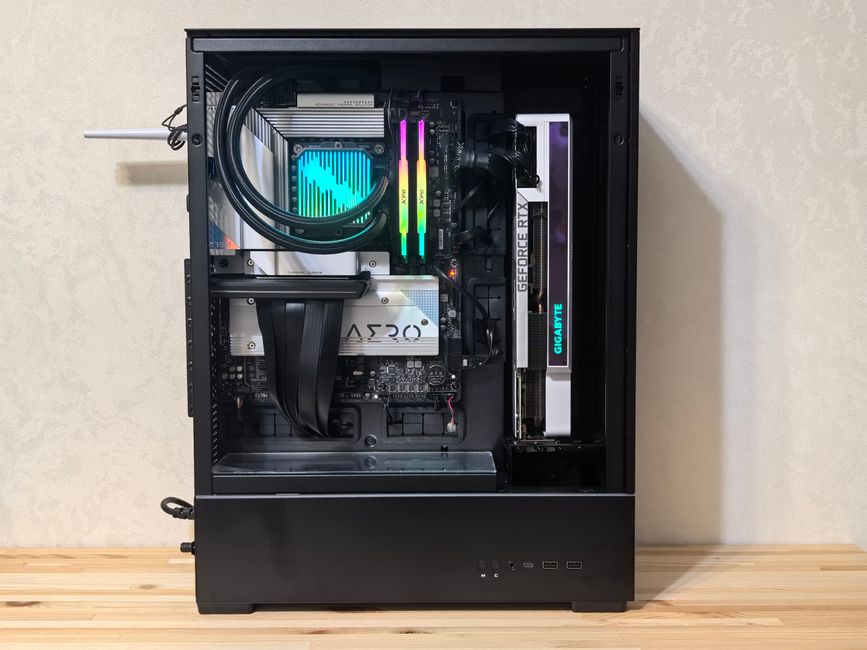
Choosing a motherboard for a small form factor build means thinking beyond whether it fits the mounting holes. In a compact enclosure, the position of a socket, connector or heatsink can determine whether the rest of your components fit comfortably. A board with an impressive feature list can still be awkward to assemble, difficult to cool or frustrating to service. The best choice works with your exact case layout and supports the hardware you actually plan to use.
Start with the case layout
Choose your enclosure, CPU cooling approach and graphics arrangement before committing to a motherboard. Small cases distribute their internal space differently. A conventional layout may place the graphics card directly in the motherboard slot, while a sandwich layout usually connects it through a PCIe riser and positions it behind the board. These arrangements create different restrictions around the motherboard edges, rear surface and CPU socket.
Check the case documentation for supported motherboard formats and layout restrictions. Mini-ITX is common in compact builds, but a supported format alone does not guarantee compatibility with every component combination. Look for assembly drawings showing where the power supply, radiator, fans and cables sit relative to the board.
Your workload should guide the compromises. A compact gaming machine with a dedicated graphics card needs different expansion options from an office PC using integrated graphics. List the devices you need inside the case and at your desk before comparing boards.
Check the whole socket area
After confirming CPU socket and firmware support, inspect the space around the socket. Large voltage regulator heatsinks, tall M.2 heatsinks and rear I/O covers can restrict cooler compatibility. This is especially important with low-profile air coolers, whose fins or heatpipes may extend over nearby components.
Use the cooler manufacturer’s compatibility information where available, then compare its drawings with the board layout. Socket position can vary between motherboards using the same platform. That difference may move a cooler closer to a side panel, graphics card or power supply. Memory height also matters when the cooler overhangs the DIMM slots.
Allow room for mounting hardware and tubes
For liquid cooling, check both the pump block footprint and the direction its tubes leave the socket. A block that clears surrounding heatsinks may still force its tubes against a fan or side panel. Confirm whether its mounting system permits alternative orientations and whether those leave room for memory and power cables.
Check the backplate area too. Case trays and cutouts affect access to cooler mounting hardware. Favor a combination you can assemble in a sensible order, with required fasteners accessible before other parts cover them.
Inspect connector placement
Download clear motherboard images and the layout diagram. Locate the main power connector, CPU power connector, front USB headers, fan headers and SATA ports. Imagine each cable plugged in, including the rigid connector body and space for a gentle bend. An empty connector occupies much less space than a connected cable.
Side-facing SATA ports can be convenient in a larger case but face directly into a tight wall or power supply in a compact enclosure. A large front USB connector near the graphics slot can conflict with a card or riser assembly. CPU power tucked into a crowded corner may be difficult to connect after installing the cooler.
- Trace power cables: Check whether their route crosses a fan intake or presses against a panel.
- Match case headers: Confirm that the board connects the front USB ports and other case features you intend to use.
- Check supplied adapters: Daughterboards and breakout cables need their own clearance.
- Allow service access: Consider how you would unplug a connector without removing unrelated components.
Adapters do not solve every mismatch. They take space and may change the direction a cable must travel. Include their dimensions in your fit checks before relying on them.
Plan around the occupied graphics slot
Many compact boards provide only one full-length PCIe slot. If your graphics card uses it, there may be no practical route for adding an internal sound card, capture card or network adapter. Select the onboard features your build requires, or decide which functions can move to external devices.
For a riser-based case, check that the riser supports the intended PCIe connection and fits the mounting arrangement. An older-generation riser may require a matching slot-generation setting in firmware. Consider how you would reach that setting if the initial assembly produces no display. Follow the case and riser documentation when planning your first boot.
If you intend to use motherboard display outputs, confirm that your CPU provides supported integrated graphics. A display socket on the rear panel does not guarantee video output with every compatible processor.
Choose storage you can cool and reach
M.2 storage reduces separate drive power and data cables, which is useful in a small enclosure. However, slot location deserves as much attention as slot count. A rear-mounted SSD may sit close to a case divider, riser cable or graphics card backplate, with limited airflow and little room for an added heatsink.
Check permitted SSD dimensions and restrictions on double-sided drives or heatsink height. Front-mounted M.2 assemblies can also become tall enough to interfere with a cooler. Read resource-sharing notes so your planned storage configuration does not unexpectedly disable another connection you need.
Think about replacement access. If changing a rear SSD requires removing the motherboard, installing your intended storage capacity during the initial build can save work later.
Match cooling to the enclosure
The board’s power delivery must handle your processor at the settings you intend to run. In a compact case, surrounding airflow affects that capability. A large heatsink cannot work well if warm air remains trapped around it. Consider where air enters, which components heat it and how it exits.
A downward-blowing CPU cooler may move air across nearby motherboard components. A liquid cooling block provides less direct airflow around the socket, making case ventilation more important. If the board includes a small onboard fan, check its location, control options and cleaning access.
Count the fan and pump connections your layout needs. Check header functions and current limits before planning splitters. A powered hub can help, but it needs mounting space and another cable route. Firmware options for power limits and fan control can help you tune the system to its cooling capacity.
Rehearse assembly before buying
Walk through installation using the case and motherboard diagrams together. Identify which parts must go in first and which connections become inaccessible later. This often reveals a conflict that separate specification lists miss.
- Confirm the exact CPU, firmware support, memory type and intended memory capacity.
- Check cooler clearance around the socket, memory, heatsinks and panels.
- Trace required cables with connector bodies and bend space included.
- Verify graphics card or riser placement and storage access.
- Locate recovery features, such as firmware flashback or CMOS reset access, and check their requirements.
Choose the board that makes this rehearsal straightforward. A reachable header, unobstructed cooler mount or accessible SSD can be more useful than another feature on the specification sheet. Good motherboard selection leaves you with a compact computer you can assemble, cool and maintain without fighting its layout.


 Lisa Buck



