 Lisa Buck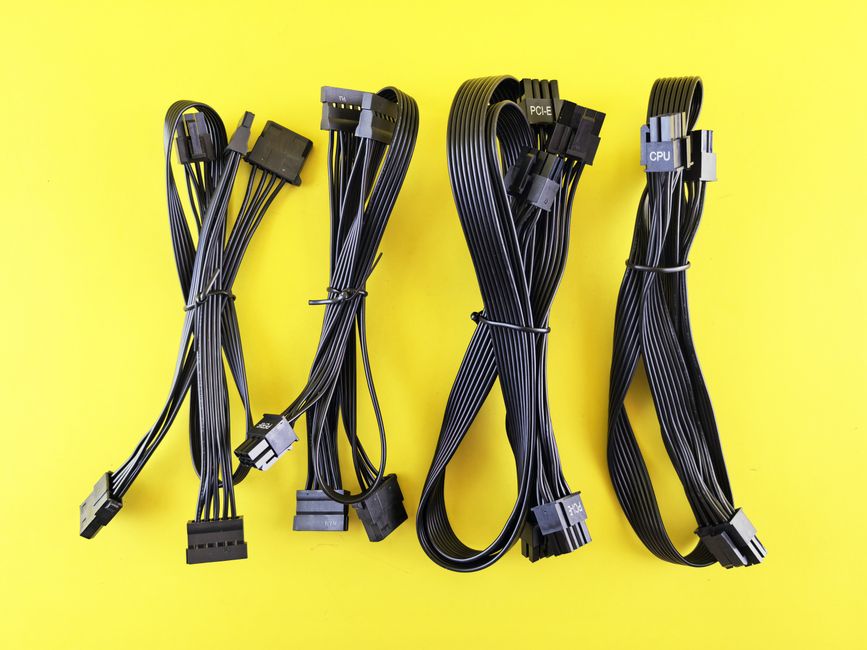
PC power cables can look confusingly similar, especially when two plugs both have eight positions. Their jobs are different, and the wrong connection can damage hardware. Understanding PC power connectors means identifying what each cable supplies, recognizing its component end, and checking compatibility at the power supply. This guide explains the main 24-pin motherboard connector, EPS CPU power, and PCIe graphics power so you can connect them confidently during a build or upgrade.
Identify the cable before connecting it
Start with the labels on the cable and the diagrams in your power supply, motherboard, and graphics card manuals. Connector shape helps confirm a match, but it should not be your only check. Wire colors are also unreliable because many cables use entirely black insulation.
- ATX or motherboard: the large connector that supplies the motherboard.
- CPU or EPS: the connector that feeds the motherboard’s CPU power circuitry.
- PCIe or VGA: the cable used for auxiliary graphics card power.
- SATA: a flat power connector for compatible drives and accessories.
These descriptions refer to the component end. On a modular power supply, the other end may look different and is not universally standardized. Trace each cable from end to end before plugging it in.
The 24-pin ATX motherboard connector
The 24-pin ATX connector is usually the widest plug in the bundle. It connects to the motherboard’s main power socket, commonly near the board’s outer edge beside the memory slots. It delivers several supply voltages and control signals, including those involved in switching the system on.
Some cables use a single 24-pin housing; others use a 20+4 arrangement. The smaller four-position section joins the larger section to fill a standard 24-pin socket. Assemble them in the orientation shown by their guides before insertion. This detachable section belongs to the main ATX plug; it is not a CPU power connector.
Align the retaining clip with the catch on the motherboard socket. Press the housing evenly until it is fully seated and the latch engages. If the board bends noticeably or the plug enters crookedly, stop and check alignment. Avoid pushing on unsupported sections of the board.
At the PSU end, a modular motherboard cable may divide into two plugs. Connect every PSU-side section required by the manufacturer’s instructions. A fully seated motherboard end does not compensate for an omitted connection at the supply.
EPS and ATX12V: power for the CPU
CPU power sockets are normally close to the processor socket, often near the motherboard’s upper edge. They deliver power to the voltage regulation circuitry that supplies the processor. The main 24-pin connector does not replace this separate connection.
Recognizing a 4+4 CPU plug
A common CPU cable ends in two matching four-position halves that combine into an eight-position EPS plug. It is typically labeled CPU or EPS. Older or simpler boards may have a four-pin ATX12V socket, while other boards provide an eight-pin socket plus an additional four-pin or eight-pin socket.
For a four-pin socket, use the appropriate half of a compatible 4+4 CPU cable as instructed by the motherboard and PSU documentation. For an eight-pin socket, join both halves correctly. Do not choose a half solely because it appears to fit, and do not substitute the detachable section from a 20+4 motherboard cable.
Does every CPU socket need a cable?
Check the motherboard manual for its required connection arrangement. An extra CPU power socket may support higher power operation, but whether it is optional depends on the board and configuration. Do not assume every additional socket is mandatory, or that it can always be left empty.
Route the EPS cable before installing parts that obstruct the upper corner of the board. Leave enough slack to insert it straight and release its latch later. A stretched cable can pull sideways on the socket.
PCIe cables: auxiliary graphics card power
A graphics card receives power through its motherboard slot, but cards with auxiliary power sockets also require the specified PSU connections. Traditional PCIe power cables use six-pin connectors or 6+2 connectors. The detachable two-position section combines with the six-position block for an eight-pin GPU socket.
Use the six-position block alone for a six-pin socket and assemble both sections for an eight-pin socket. Follow the card’s instructions and populate all required inputs before switching on. Do not assume the slot supplies enough power just because the card is physically installed.
Why CPU and PCIe eight-pin plugs are different
A CPU 4+4 plug and a PCIe 6+2 plug have different electrical assignments and keying. They are not interchangeable at the component end. Count how the plug splits, read its label, and confirm its destination. Never force a connector, trim its housing, or modify a latch to make it fit.
Some modular PSUs have sockets labeled for both CPU and PCIe cables. That shared PSU-side socket does not make the cables identical. Use the correct compatible cable between the designated PSU port and the component.
Two plugs on one cable
Some PCIe cables have two GPU plugs along one cable. Whether both can power a particular card depends on the PSU cable design and the graphics card’s requirements. Follow both manufacturers’ instructions. If separate cable runs are specified, use them; two plugs on the same run do not count as two separate cables.
Where 16-pin GPU connectors fit
Some graphics cards use a compact 16-pin connection associated with 12VHPWR or 12V-2×6. It combines larger power contacts with smaller signal contacts. Use the cable or adapter approved for your exact PSU and graphics card combination; the familiar PCIe label alone does not establish compatibility.
If the card uses an adapter, connect all required inputs according to its instructions. Insert the GPU connector fully, check that its latch engages, and inspect for a visible gap. Follow the cable maker’s bend-clearance guidance and avoid sharp bends or sideways tension directly at the housing. Check again after closing the case, especially if the side panel could press against the cable.
Modular PSU cables require an exact compatibility check
The component ends follow defined connector standards, but modular PSU pinouts can differ between manufacturers and between product families from the same manufacturer. A cable can physically fit the PSU while delivering voltage to the wrong contacts.
When replacing a PSU, replace its modular cables too, unless the manufacturer explicitly confirms compatibility with the exact replacement unit. Keep spare cables labeled with their original PSU. For replacement cables, verify the PSU model and cable family against the manufacturer’s compatibility documentation.
An extension attaches to an existing component-end connector, whereas a replacement modular cable plugs directly into the PSU. They serve different purposes. Neither is automatically suitable because its color, connector count, or packaging matches your build.
A final connection check before power-on
- Shut down the PC, switch off the PSU, and unplug its mains cable before handling internal connections.
- Confirm the main ATX cable, required CPU connections, and required GPU connections against the manuals.
- Inspect both ends of each modular cable for full insertion and engaged latches.
- Check that cables are not trapped under panels or pulling connectors sideways.
- If a plug resists insertion, stop and recheck its identity and orientation.
To disconnect a cable, release its latch and pull on the housing rather than the wires. If you find discoloration, melted plastic, or damaged contacts, stop using the affected connection and seek replacement guidance. Correct labels, confirmed compatibility, and fully seated plugs are the foundations of reliable PC power connections.


 Lisa Buck



