Lisa Buck
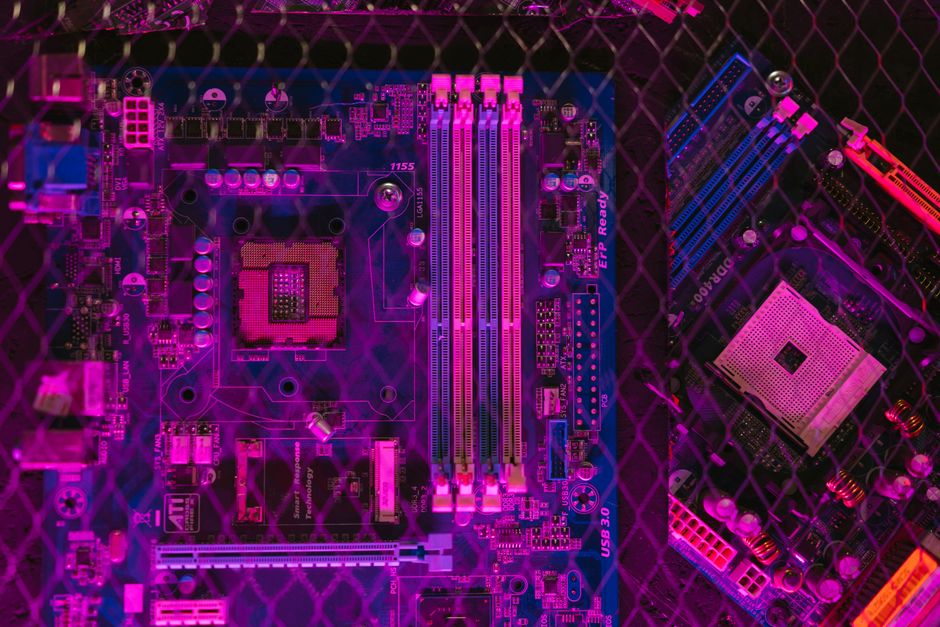
A BIOS Flashback feature can help when a motherboard needs newer firmware before it recognizes a processor. It is different from updating through an already working firmware menu. Start with the exact model and board revision printed on the board or box. Similar model names can have different firmware files and procedures.
Confirm the update solves your problem
Look up the processor on the board maker’s support list and note the minimum BIOS version. Read the release notes and check for required intermediate updates. If the machine already starts reliably, use the update procedure recommended for that board rather than assuming the rear button is the default route.
Follow the board-specific sequence
The manual should identify the correct USB port, required drive formatting, filename and power connections. Some boards require a vendor renaming utility. Put only the intended file on the USB drive if instructed, and do not interpret a brief blink as success. The manual explains which light pattern means the update is running, completed or rejected.
Before and after the update
On an existing installation, record boot mode, storage controller settings and custom fan profiles. Make sure you can retrieve the recovery key for encrypted storage. During the update, leave power connected. After completion, allow time for memory training on the first boot, then restore only the settings the system needs and confirm the reported firmware version.

 Lisa Buck