Lisa Buck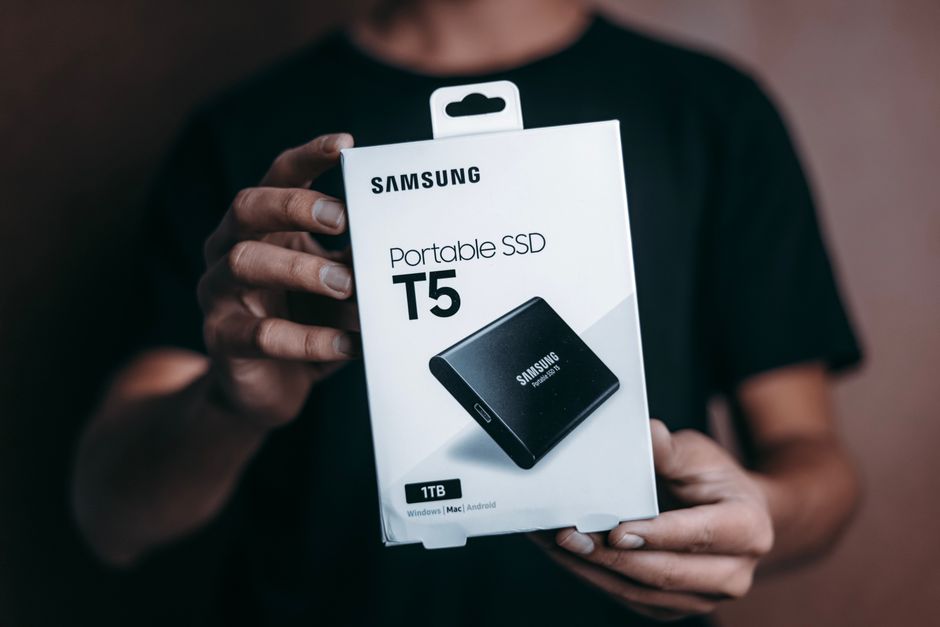
An external SSD can carry working files, hold a portable game library, or make regular backups easier. Choosing one involves more than picking a capacity and finding a USB-C socket. The drive, enclosure, cable, and computer all affect how it behaves. Start with the files you move and the computers you use, then decide whether a finished portable SSD or a separate drive and enclosure fits your routine.
Start with your workload
For documents and occasional photo transfers, convenience and dependable connections usually matter more than the fastest interface. Editing large media files directly from external storage places greater demands on sustained performance and cooling. A backup drive needs capacity for retained versions, while a traveling work drive benefits from a secure connector and a case that packs easily.
Estimate capacity from your actual folders, then allow room for growth and temporary files. Applications may create previews, caches, or exports alongside source material. Avoid planning to keep an SSD completely full: free space accommodates these changes and gives the controller room to manage writes.
Finished portable SSD or separate enclosure?
Finished drives simplify ownership
A finished external SSD combines storage, interface electronics, and a case in one supported product. This is convenient when you want a ready-to-use device with a single warranty contact. Some include management or encryption software, although you should check operating-system support before depending on those features.
Do not assume the internal drive is replaceable. Some portable SSDs use integrated electronics or sealed construction. If future upgrades matter, check whether the manufacturer explicitly supports opening and servicing the device.
Enclosures offer flexibility
An enclosure lets you select a compatible internal SSD and connect it externally. This is useful when repurposing a spare drive or when you want to replace the storage later. You take responsibility for matching components, fitting the drive correctly, and checking support across the enclosure and SSD suppliers.
Check a spare SSD before using it for important portable storage. Review its reported health with a compatible utility where available, and investigate errors or unexplained disconnects. An enclosure cannot restore reliability to a failing drive.
Match the SSD to its enclosure
M.2 describes a physical format, not a guarantee of compatibility. M.2 SSDs can use SATA or PCIe/NVMe, and many enclosures support only one of those interfaces. Others explicitly support both. Read the enclosure specification rather than relying on the connector’s appearance.
- Storage interface: Confirm SATA or NVMe support for the drive you intend to use.
- Physical size: Verify support for the drive’s length and mounting position.
- Component clearance: Check support for double-sided drives and any thickness restrictions.
- Cooling hardware: Confirm that the supplied thermal pad and case suit the drive’s layout.
A 2.5-inch SATA SSD needs an enclosure designed for that form factor. An M.2 enclosure cannot accept it. Likewise, an SSD with a bulky desktop heatsink may not fit a compact enclosure. Choose components intended to work together instead of forcing the case closed.
Check the complete connection path
USB-C tells you the connector shape. You still need to check the supported data rate and protocol of the computer port, enclosure, and cable. A cable intended mainly for charging can restrict transfers even when both ends fit perfectly. Use the supplied cable initially, or choose a replacement explicitly rated for the required data connection.
Look beyond broad labels such as USB 3.2. The complete specification matters, including whether the host supports the enclosure’s particular transfer mode. Confirm USB 3.2 Gen 2×2 support explicitly; a USB4 or Thunderbolt label alone does not establish support for that mode.
Also verify fallback compatibility. Some enclosures support ordinary USB operation alongside a faster connection, while others require a particular host protocol. A compatible fallback makes a drive useful across several computers, though it may run more slowly.
A dock adds another part to this path. Storage can share its upstream connection with other devices, and display traffic may also consume connection bandwidth depending on the dock design. For demanding transfers or troubleshooting, connect the SSD directly to a suitable computer port first.
Prioritize steady performance and cooling
Peak transfer claims do not describe every workload. Large sequential files behave differently from folders containing many small files. The source drive, destination drive, software, and background activity can limit a transfer before the external connection reaches its potential.
Some SSDs use a faster write cache that helps with short bursts. During a large sustained copy, that cache can fill and the write rate can fall. Available space and the underlying flash design also influence behavior. If long transfers are central to your work, seek documentation or independent evaluation covering sustained writes and operating temperatures.
Heat can cause an SSD or enclosure controller to reduce performance to stay within operating limits. Metal cases and properly fitted thermal pads help move heat outward, so a warm shell is not automatically a fault. Keep the enclosure exposed to air during use instead of leaving it inside a padded bag.
Assemble and prepare the drive
- Disconnect the enclosure. Follow its instructions, handle the SSD by its edges, and avoid touching exposed contacts.
- Install and secure the SSD. Use the correct mounting point. Remove thermal-pad protective film where instructed and check that the pad makes contact without bending the drive.
- Close the case and connect directly. Use a suitable cable and computer port for initial setup.
- Identify the correct disk. Check capacity and device details in your operating system’s disk utility before initializing or formatting. Formatting erases existing data.
- Copy disposable sample files. Open them from the external drive, safely eject it, reconnect it, and confirm they remain readable before trusting it with important work.
Choose a file system for the devices that need access. NTFS is common for Windows-focused use, while APFS suits Mac-focused storage. exFAT is useful for exchanging files between Windows and macOS, but lacks journaling and some native file-system features. Check application and device requirements before formatting, especially for game libraries or specialist equipment.
Keep portable storage dependable
If transfers become slow or the drive disconnects, try a suitable replacement cable and another direct computer port. Remove hubs from the path, check for excessive heat, and see whether the problem follows the drive to another computer. Update enclosure firmware only through the supplier’s instructions, with important files backed up first.
Use the operating system’s eject function before unplugging, and wait for active copies to finish. For travel, protect the connector from strain and check what advertised water or dust resistance actually covers. Encryption can protect sensitive files if the drive is lost; keep recovery information somewhere separate.
Keep another copy of anything irreplaceable. A portable SSD holding your only working files is not a backup. Choose a compatible, well-cooled setup that fits your daily workload and makes maintaining those extra copies straightforward.


 Lisa Buck