 Lisa Buck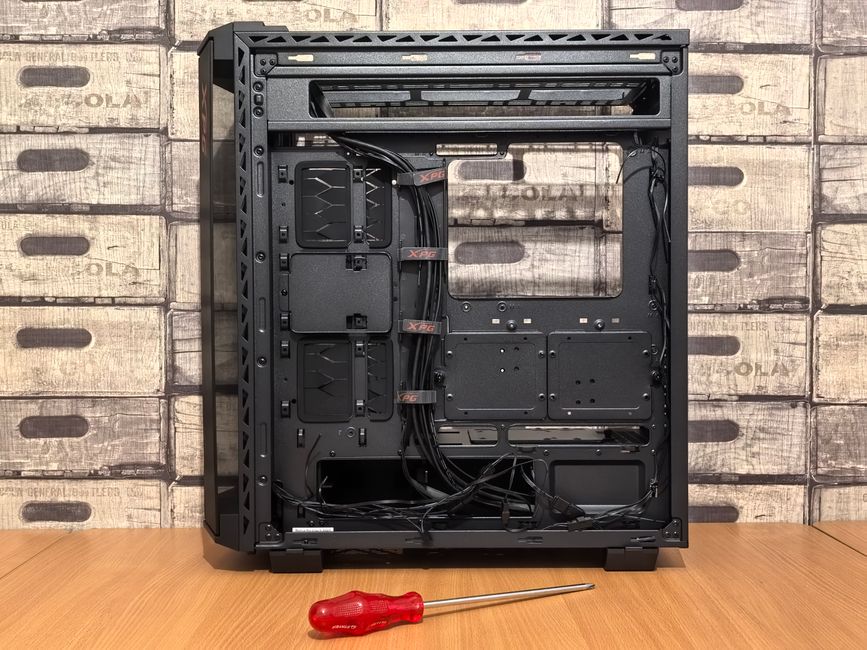
A safe PC building toolkit is less about owning a large box of tools and more about having the right few items within reach. A screwdriver that fits, a sensible approach to static electricity, and correctly matched mounting hardware prevent many avoidable problems. Before opening component packaging, prepare a workspace where small screws stay visible and delicate parts have somewhere safe to rest. The tools and handling habits below help you assemble a desktop without damaged fasteners, scratched circuit boards, or misplaced standoffs.
Prepare a stable, well-lit work area
Choose a solid table with enough space for the case, component boxes, and a small parts tray. Good lighting matters because a dropped screw or a misaligned mounting hole can be difficult to spot inside a dark chassis. A movable lamp is useful, provided its cable does not cross your working area.
Keep drinks away and remove loose metal objects from the surface. Avoid working directly on carpet or setting components on fabric, which can snag small parts and contribute to static buildup. A clean, dry, hard surface is easier to inspect. If you need to set a motherboard down outside the case, its plain cardboard box is a practical temporary support for unpowered assembly.
Keep the case and component instructions nearby. They identify which supplied screws belong where, whether a mounting accessory is required, and whether a particular mechanism needs a tool at all. Open hardware bags one at a time instead of combining them into a single pile.
Choose screwdrivers that fit the fasteners
A good manual Phillips screwdriver handles much of a typical desktop build. A Phillips number two tip commonly fits case and expansion-slot screws, while smaller fasteners may need a number one or precision tip. Check the actual screw head before applying pressure: the tip should seat fully with little wobble.
A long shaft helps reach recessed mounting points, and a comfortable handle gives better control than a tiny precision handle on larger screws. A smaller driver remains useful for storage accessories and other compact hardware. Some cases or coolers use different fasteners, so check their instructions before assuming one driver covers everything.
- Main driver: A well-fitting Phillips screwdriver for common case hardware.
- Smaller driver: A precision screwdriver or suitable bit for small fasteners.
- Optional reach: A longer shaft for awkward locations, with clear visibility of the screw.
- Matching specialty bit: Only when your supplied hardware requires it.
A lightly magnetized tip helps retain a screw as you lower it into position. Ordinary magnetized screwdrivers are generally suitable for PC assembly; the more immediate danger is slipping into a circuit board. Avoid loose magnetic accessories that could fall into the case. For an initial build, a manual driver makes it easier to feel resistance than a powered screwdriver.
Use feel instead of force
Keep the driver aligned with the fastener and apply steady pressure. Start screws gently by hand where accessible. If a screw binds immediately, back it out and check its angle and thread type. Do not use the driver to pull misaligned parts together. Stop when ordinary mounting screws are secure; follow the manufacturer’s tightening instructions for coolers and other specialized assemblies.
Control static electricity without creating electrical hazards
Electrostatic discharge happens when an electrical charge moves between objects at different potentials. You may not feel a discharge that affects sensitive electronics. The practical goal is to reduce charge buildup and keep yourself and the hardware at the same electrical potential while handling exposed components.
An electronics-grade antistatic wrist strap with its intended resistor-equipped lead is useful. Wear it against bare skin and connect it according to its instructions, typically to a suitable bare metal point on the chassis for bonding. Paint can prevent electrical contact. Bonding to an unplugged chassis helps equalize potential, but it does not make that chassis an earth ground.
For a more controlled setup, use a purpose-made dissipative mat and strap system with the manufacturer’s approved grounding arrangement. An ordinary rubber desk mat is not automatically an ESD mat. Never improvise a connection to an outlet, use a bare wire as a wrist strap, or attach yourself to exposed electrical contacts.
Keep the PC disconnected from mains power during assembly. Leaving it plugged in solely to obtain a ground introduces an unnecessary complication. If you lack a strap, periodically touching bare chassis metal can help equalize charge, though it offers less continuous protection. Limit movement, avoid shuffling on carpet, and handle boards by their edges regardless of your static precautions.
Use packaging for storage, not as a work mat
Leave components in their protective packaging until needed. Antistatic shielding bags are useful for storing suitable parts, but their outer surfaces are not a dependable insulating work surface. Do not assemble or power a board on top of one. Avoid touching gold contacts, socket contacts, or exposed circuitry, and return unused parts to their original protective packaging.
Sort screws and standoffs before mounting anything
Motherboard standoffs hold the board above the metal case tray. They provide clearance for solder joints and circuitry underneath. An extra standoff in the wrong location can contact the underside of the board and cause a short, so this small piece of hardware deserves a deliberate check.
Compare the case’s installed standoffs with the mounting holes on your actual motherboard. Case markings for ATX or other formats are helpful, but the board itself is the final reference. Remove any standoff that sits beneath the board without a corresponding mounting hole. Some cases include a locating post rather than a threaded standoff at one position; follow the case instructions for that feature.
Use the supplied standoff adapter or a correctly sized nut driver when required. Avoid gripping a standoff carelessly with pliers, which can slip or damage it. Check that standoffs are secure before lowering the board into place, and use compatible screws. Similar-looking case screws can have different threads or lengths, so appearance alone is not a reliable guide.
A divided tray, small containers, or labeled bags keep fasteners separated. Keep tiny storage screws with their matching mounting parts. Some storage mounts use tool-free latches instead, and forcing a screw into such a mechanism can damage it. Never substitute a longer screw simply because the intended one is difficult to find.
Add a few useful supporting items
A flashlight helps inspect tight spaces, while reusable hook-and-loop straps keep loose cables under control during assembly. If you use cable ties, have a small cutter available and protect nearby wires when trimming the tails. Do not tighten ties enough to crush insulation or strain connectors.
A plastic parts tray is often more useful than another specialty tool. Blunt tweezers can help retrieve a small loose item from an unpowered case, but keep them away from delicate contacts. Avoid using metal tools to pry connector latches; improve access and check the release mechanism first.
Lint-free wipes and electronics-appropriate isopropyl alcohol are optional supplies for cleaning accidental thermal compound residue. Follow component guidance, apply liquid to the wipe rather than pouring it onto hardware, and let surfaces dry completely. Keep socket contacts and other delicate assemblies outside routine cleaning attempts.
Finish with a tool and hardware check
Before connecting power, account for your tools and inspect the case for loose screws, discarded ties, and packaging. If a screw disappeared during assembly, find it before proceeding. Gently reposition the unpowered case if necessary, keeping heavy components supported; avoid shaking it aggressively.
Check that mounting hardware sits where intended and that nothing metallic is trapped beneath a board. Store spare screws in labeled bags outside the chassis. With the workspace clear and every tool accounted for, your toolkit has done its most important job: helping you build carefully and recognize when something needs a second look.


 Lisa Buck



