 Lisa Buck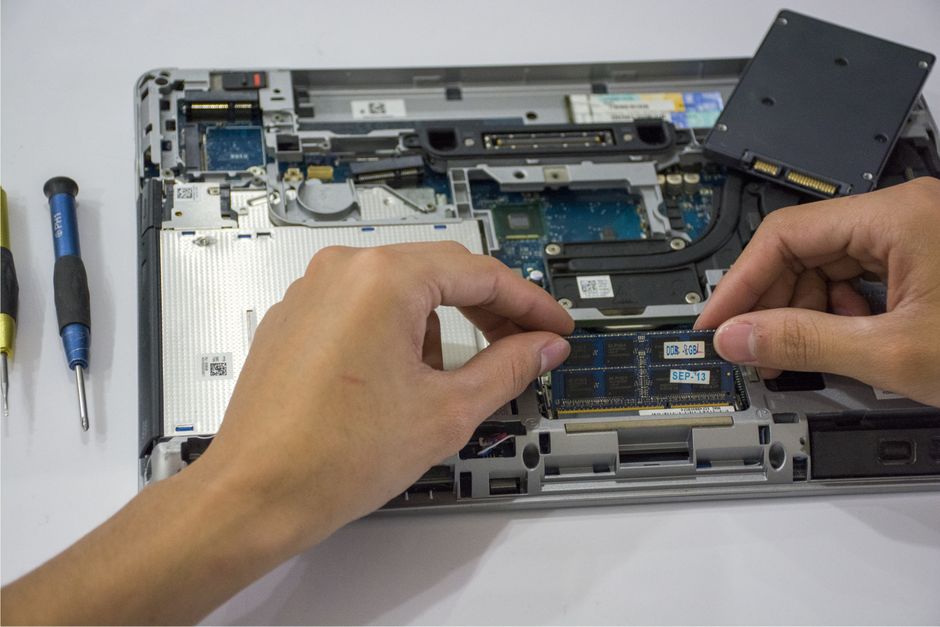
M.2 sockets on a motherboard can look identical while offering different connections. One may link directly to the processor, another may share an upstream connection through the chipset, and a third may disable another connector when occupied. Heatsinks can hide the labels that distinguish them. Understanding these differences helps you place your SSDs sensibly and avoid surprises when adding storage.
Start with the socket specifications
M.2 describes a physical format and connector system, not a guaranteed storage interface or speed. Desktop storage sockets commonly support PCIe NVMe drives, but some also accept SATA M.2 drives. Other M.2 sockets may be intended for wireless modules. Physical fit alone does not establish compatibility: the socket must support the drive’s interface, keying and dimensions.
Find each storage socket’s identifier in the motherboard diagram, then match it to the storage specifications. Labels such as M2_1 and M2_2 identify locations; they do not establish a universal ranking. Check supported lengths too. A 2280 module measures 22 millimeters wide and 80 millimeters long, so it needs the corresponding mounting position.
If your SSD has components on both sides, check underside clearance. Mounting hardware, thermal pads and nearby components can affect whether a double-sided drive fits properly. A large motherboard cover does not prove that every socket beneath it supports the same dimensions.
Understand generation and lane width
A specification such as PCIe 4.0 x4 contains two separate details. The generation describes the link technology, while x4 means four PCIe lanes. Both affect the connection’s bandwidth ceiling. Read the complete specification rather than judging a socket by its generation alone.
Compatible PCIe drives and sockets generally negotiate a mutually supported connection. A newer drive in an older socket operates within the older connection’s limits. An older drive in a newer socket retains its own limits. Likewise, a socket wired for fewer lanes cannot supply a four-lane connection simply because the SSD supports one.
The advertised connection is a ceiling, not a promise of application performance. Workload, drive design and temperature also matter. Ordinary application launches may reveal little difference between compatible sockets, while sustained storage transfers can make connection limits more relevant.
Trace the connection to the processor
CPU-connected M.2 sockets
A CPU-connected socket uses lanes supplied directly by the processor. Storage traffic avoids the shared chipset uplink, making this a useful location for demanding storage work. However, physical proximity to the processor does not prove that a socket connects directly to it. Check the specifications or block diagram.
The installed processor can also change socket capabilities. Different supported CPUs may provide different lane arrangements or PCIe support on the same motherboard. Read processor-specific footnotes before assuming that every headline storage feature applies to your build.
Chipset-connected M.2 sockets
A chipset-connected SSD reaches the processor through the chipset’s uplink. Other chipset devices use that path too, potentially including additional SSDs, network controllers and USB devices. Each drive can negotiate its own slot connection while their combined traffic encounters a shared upstream limit.
This does not mean a chipset-connected SSD is constantly restricted. Competition matters when several devices need substantial bandwidth together. Large transfers involving multiple chipset-connected drives and a busy external device can create contention that is absent during light desktop use. Consider simultaneous activity when planning placement.
Separate sharing from disabled connections
Motherboard sharing notes describe several arrangements with different consequences. Read the precise condition rather than treating every mention of shared lanes as the same restriction.
- Shared upstream bandwidth: devices remain available but compete for a common path when active together.
- Exclusive connector use: populating an M.2 socket makes a specified SATA port or expansion slot unavailable.
- Reassigned processor lanes: using an M.2 socket changes the lane allocation for another connection, potentially including the graphics slot.
A SATA-port restriction may apply only when a SATA M.2 drive is installed, or whenever that socket is occupied. A graphics slot can retain its full physical length while operating with fewer electrical lanes. The motherboard’s sharing table determines which situation applies.
List your intended SSDs, SATA drives and expansion cards before assigning sockets. Compare that list with the storage footnotes and lane-sharing table. If one socket changes the graphics connection, check whether another provides a more suitable arrangement. Filling every M.2 socket does not necessarily leave every other connector available.
Plan drive placement before assembly
- Match each drive to a socket supporting its interface, dimensions and clearance requirements.
- Identify the socket’s connection source, PCIe generation and lane width for your processor.
- Check whether the intended combination disables ports or changes expansion-slot connections.
- Assign demanding storage workloads an appropriate connection, then place remaining drives according to bandwidth and cooling needs.
- Consider access for future changes, especially where the graphics card covers a socket.
The operating-system drive does not inherently need the fastest connection. A drive holding large working files may benefit more from an unrestricted path. Choose according to workload and keep the effects of a future SSD addition in mind.
Fit heatsinks for proper contact
An M.2 heatsink spreads heat from the SSD into a larger surface, usually through a thermal pad. Airflow helps carry that heat away. Effective cooling can help prevent thermal throttling during sustained activity, but the heatsink still depends on its surroundings. A socket behind a hot graphics card may experience different conditions from an exposed socket.
Check compatibility when your SSD has a factory-fitted heatsink. It may prevent the motherboard cover from fitting. Do not stack both assemblies or force a cover into place. Follow the drive manufacturer’s guidance before removing a factory assembly, and leave the product label attached unless the manufacturer explicitly instructs otherwise.
With the computer shut down and disconnected from power, follow the board’s mounting instructions. Position the standoff or retention latch for the drive’s length. Remove protective film from the thermal pads identified in the instructions, seat the SSD and secure it without bending it. Refit the heatsink with gentle, even pressure.
Use the specified thermal-pad arrangement and thickness. Extra padding can bow the drive or interfere with contact. If a pad needs replacement, check the board manufacturer’s guidance instead of choosing a thicker pad on the assumption that it will cool better.
Check the completed layout
After assembly, confirm that all intended drives appear in firmware or the operating system. If a connection seems restricted, inspect its negotiated PCIe generation and width with a suitable hardware-information utility. Some utilities distinguish current power-saving behavior from maximum capability, so read their labels carefully.
If another drive disappears after an upgrade, revisit the sharing table before replacing hardware. If sustained work produces rising temperatures and falling performance, inspect heatsink contact and airflow, comparing readings with the SSD manufacturer’s temperature guidance. Record which socket holds each drive and which connectors it affects. That small reference makes your next storage upgrade easier to plan.


 Lisa Buck



