 Lisa Buck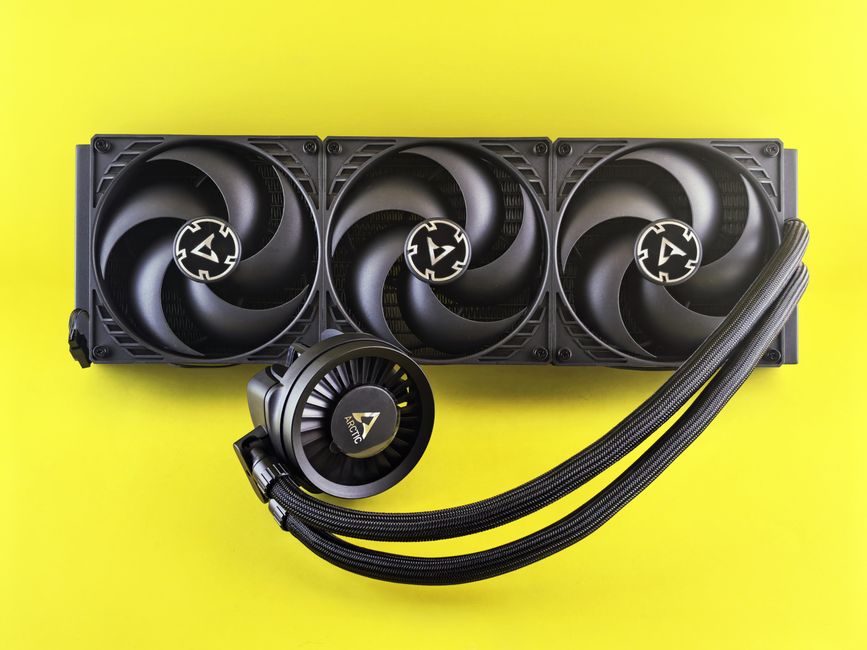
An all-in-one liquid CPU cooler needs less upkeep than a custom cooling loop, but it still needs attention. Dust can restrict its radiator, a loose connection can stop its pump, and changes in sound can reveal a developing problem. Keeping an AIO healthy means caring for its external parts, checking that coolant can circulate properly, and recognizing when replacement makes more sense than repair.
You do not need to dismantle the cooler to maintain it. A simple routine built around inspection, careful cleaning, and comparable operating checks will help you catch trouble without disturbing a working installation.
Know what you can maintain
An AIO transfers heat from the CPU through a cold plate into circulating coolant. A pump moves that coolant through a radiator, where fans carry heat into the surrounding air. The radiator, fans, mounting hardware, cables, and visible tubing are the parts you can normally inspect and maintain.
Most AIOs are sealed units with no routine coolant service requirement. Do not open fittings, remove the cold plate, or add water simply because the cooler is getting older. Opening a sealed unit can introduce contamination, upset the coolant mixture, and create leaks. If your particular cooler has a documented refill procedure, follow its manufacturer’s instructions and approved fluid requirements.
Keep a useful baseline
While the cooler is working normally, record its usual sound and behavior during a familiar workload. Note the CPU temperature, pump speed if available, radiator fan speed, and approximate room conditions. If the cooler exposes a coolant temperature sensor, that reading can also help you recognize changes later.
These observations are most useful when the workload and settings stay similar. A warmer room, a different application, or changed CPU power settings can raise temperatures without indicating cooler failure. Brief CPU temperature spikes also do not prove that circulation has stopped.
After cleaning or changing a connection, repeat the same ordinary workload and watch how the system settles. Look for a persistent change from its established behavior rather than judging the cooler from one isolated reading.
Clean the radiator without damaging it
Inspect the radiator whenever you check the case filters. Increase the frequency if you see rapid buildup, especially around pets or in a dusty room. Dust often collects on the radiator face hidden behind its fans, so a clean-looking exposed surface does not tell the whole story.
- Shut down the computer, switch off its power supply, unplug it, and let the components cool before opening the case.
- Check both radiator faces with a light. Look between the fans and radiator for a felt-like layer of dust.
- Hold each fan stationary while using short bursts of electronics-safe compressed air. Follow the can’s handling instructions to avoid spraying liquid propellant.
- Where accessible, blow dust back toward the side it entered. Use a soft brush gently on stubborn surface debris without pressing into the fins.
- Clear the displaced dust from the case and clean removable filters according to the case instructions. Let washed filters dry fully before refitting them.
If fans obstruct access, remove them carefully while supporting the radiator and its tubing. Keep track of screw locations and use the original hardware when reassembling. A screw that is too long can damage the radiator beneath a mounting hole. Avoid unnecessary radiator removal if you can clean it safely in place.
Do not rinse an installed radiator, spray cleaner into the computer, or scrape its fins with a hard tool. Thin fins bend easily, and aggressive cleaning can cause more trouble than the dust you are removing.
Inspect tubing, fittings, and mounting
With the power disconnected, look for moisture, staining, or unusual residue around the hose connections, radiator seams, and CPU block. Check that tubing has smooth bends and is not trapped under a panel, pulled tight, or rubbing against a sharp edge. Sleeving can conceal the tube itself, so inspect the accessible connections closely.
Check for visibly loose mounting hardware without treating every inspection as a reason to tighten it. Excessive force can damage hardware or distort the mounting arrangement. If the CPU block has moved or its mount is loose, use the cooler’s installation instructions to restore the correct mounting pressure.
Thermal paste does not need replacing at every cleaning. Consider remounting only when evidence points to poor contact or when another task requires removing the block. Once you lift it off the CPU, clean the contact surfaces and apply fresh paste before reinstalling it.
Keep air away from the pump
An AIO can contain a small air pocket, which may become more noticeable as coolant gradually permeates through tubing over time. Orientation helps that air collect away from the pump. First identify where your cooler’s pump actually sits: some designs place it outside the CPU block.
For a conventional block-mounted pump, a top-mounted radiator usually provides a suitable place for air to collect above it. With a front-mounted radiator, keeping the upper radiator tank above the pump matters; placing the tube connections at the bottom can help keep air away from the radiator outlets when the tubing reaches comfortably.
Follow the instructions for your cooler’s design, and never force a tight tube bend to achieve a preferred layout. Brief bubbling after moving the computer can be temporary. Persistent gurgling, grinding, or a new recurring rattle warrants inspection. Avoid shaking the computer or repeatedly running a struggling pump in an attempt to clear it.
Check power and control connections
Radiator fans spinning does not prove that the pump is running. Likewise, illuminated lighting only confirms that part of the cooler receives power. Consult the wiring diagram to identify the pump’s power connection, speed reporting lead, and any required controller connections.
Some coolers draw pump power from a motherboard header; others use a separate power connector and send only a speed signal to the motherboard. With power disconnected, check that the required connections are seated. Confirm afterward that the relevant header uses the control mode and operating setting specified by the cooler manufacturer.
Do not apply a fan-stop setting to a pump unless the manufacturer explicitly supports it. A missing speed reading can mean a reporting or wiring issue rather than mechanical failure, while a reported speed cannot guarantee healthy coolant flow. Judge it alongside temperature behavior and sound.
Recognize when to stop troubleshooting
A gradual decline may come from radiator dust, obstructed airflow, or a failing fan. Clean and inspect those accessible parts first. If cooling remains poor despite normal settings and secure mounting, internal blockage, coolant loss, or pump wear may be responsible. These problems generally require manufacturer support or replacement of a sealed cooler.
If CPU temperature rises rapidly toward its thermal limit during light use, shut the system down. Check the cooler before repeating the workload. Repeated overheating tests provide little useful information when circulation may have failed.
If you discover a leak, stop using the computer immediately. Shut it down and disconnect mains power if safe. Do not reconnect it merely because visible moisture has dried; coolant residue can remain beneath components. Photograph the affected areas and contact the cooler manufacturer for guidance.
Keep the purchase record, cooler identification, and a short maintenance log. They make support requests easier and help distinguish a sudden fault from a gradual change. Regular external care, sensible monitoring, and timely replacement are the practical foundations of a healthy AIO.


 Lisa Buck



